
· 9 min read

Overview

This is my 2nd post about a Chatbot solution to address the world wide problem "CoronaVirus" panademic. As it is now spreading across the world and its really vital to provide all citizens of the countries with up-to-date information. As we know it has come to a level that certain countries are in lockdown mode , more and more people are started to practice social distancing and work from home. As we have seen in the previous blog about the sentiment analysis of employees working form home, in this blog i will explain about how to build a chat bot to provides answers to most of the queries related to health information and latest learning. Chatbot is a platform which can be integrated with Web inteface or any collaboration tools such as MS Teams, Slack or Telegram and it can be operated 24*7 without any downtime.

Prerequisites:

You will need to have an Azure Subscription. If you do not have an Azure subscription you can simply create one with free trial.

How to Build:

If you are new to building Chatbot, it is extremely easy and you can enable access to knowledge base via bot in few minutes.

Step 1: Create the Resource Group

As the first step, we need to create the resource group that contains all the resources needed. Navigate to Azure Portal and create the resource group named “rg-chatbot”

Create Resource Group

Step 2: Create a knowledge base

As the next step, navigate to QnA maker,sign-in with your Microsoft account and then click "Create a knowledge base" option

QnA maker

click "Create a QnA service" button in "Step 1" as shown below;

Create QnA service

You will be re-directed to Azure portal. Fill in the template form, and make sure to set pricing tier for "QnA Maker service" to F0, and for the supporting Azure Search service to F, if you want to host your Bot components for free. Then click "Create" button;

Create QnA service

As you could see in the portal Deployment of the relevant resources in your target resource group. If successful, you should get notification as resources deployed. As you will see the following resources under the particular resource group

Resources in QnA

Click on the App Service Plan you created

Note : By Default when you create, App Service Plan for the website is set to S1 pricing tier. You need to change it to the F1 tier if you don't want to have much cost incur on your subscription. You can do this by navigating to Scale Up(App Service Plan) and then select Dev/Test tab and select F1 and Apply.

Change the AppService plan

Step 3 : Connect your QnA service to your KB.

Navigate to the QnA maker again and click 'Refresh" button in "Step 2"

Click on Refresh and select the bot we created

Give a meaningful name to your Knowledge Base (KB)

Name your KB

Step 4 : Populate Knowledge base from different sources

You can specify different sources to feed your knowledge base. It can be populated uploaded from files (e.g., in PDF, MS Word, MS Excel, etc. formats) or typed manually or from Web sites (containing FAQ). For this example, we will be using the recommended standard Knowledge base with Covid-19 FAQs from the  Centers for Disease Control and Prevention and World Health Organisation Web sites.

Knowledge Base Sources

Also in the next step chit-chat" section you may choose "personality" for your bot, so that it can answer some additional small talk questions. This option will enrich the knowledge base with additional question/answer details, so you bot may respond to various greetings.

Populate KB

Now you can create your KB with a simple button click to setup your knowledge base and populate it with the data from the different configured sources.

Select the way it should answer small-talk questions

Once it successfuly created, you will see a window as follows,

Create the knowledge base

Step 5: Test bot's knowledge base

It's time to test bot'ts knowledge base , by clicking -> Test button, then type a question and enter,

Test Knowledge base

If you are happy with bot's responses, just go ahead and click "Save and train", then switch to "Publish " tab and publish the Knowledge base

Publish the Knowledge base

Step 6: Create Bot

Once it got successfully published, you can click on Create Bot as follows,

Create Bot

You will be re-directed to Azure portal where you can set the pricing tier of your Azure Bot Service to F0 (free one) , and you can pick SDK language as the one you are familiar with (either C# or Node) and the click "Create" button;

Create Web Bot

You can obtain the QnA authKey by clicking on it and from the deployment details,

Obtaining AuthKey

Once we filled everything, just hit Create button. Once it get deployed you will be able to see it from the notification.

Once Web App Bot is deployed , you may verify its functionality by selecting "Test in Web Chat" in the left navigation bar and then typing your messages in the Test window.

Test in Web Chat

If you get replies similar to what is shown on the screenshot above, congratulations - you have successfully completed setup and training of your bot !

Next step would be to make it accessible in your platform of choice.

Step 7 : Embed your bot into any web site of yours

Azure Web App Bot can communicate with external world via so called "channels". The channels are built for the relevant collaborating platforms, e.g. Skype,MS teams or Telegram. To find out more about supported channels, please consult Microsoft documentation here. By default, Web App Bot has "Web Chat" channel activated. It means that you can easily start using it on your Web site.

Navigate to Channels on the blade of created bot, then click "Get bot embedded codes" and finally click "Click here to open Web Chat configuration page" link.

Web Chat

Now click the "Show" link to reveal one of the secret keys. Use it to replace the <YOUR_SECRET_CODE> placeholder in the provided embedded code sample.

You can now paste this embedded code into the source code of your target website.

Now you can embed this into a Web sites can be built using various Web development frameworks: be it Angular,React,Vue,Angular or anything else.

Copy the code and embed in your site

Simply clone the repository, then replace the <PUT_YOUR_SECRET_CODE> placeholder on line 1059 with the secret code from your Web Chat configuration page (as described above).
You will then have a fully functional web page with an embedded QnA chatbot.

In this case, i already have built an Covid Tracker application with Angular and this how it looks when i embed the code what we got from the portal.

Covid tracker with BOT in place

Step 8: Enable Chatbot in Microsoft Teams

Say if you want to serve internal audience such as employees and if you are widely using Microsoft Teams in this crisis situation, you would nee to activate relvant channel in the bot's configuration.

Open Web App bot resource in the Azure portal again and select "Channels" option from the blade and click Microsoft Teams icon and press Save button

Select the channel you want to integrate with

Once it got successfully published, you can navigate to Channels blade again and see the Microsoft Teams channel in running state.

MS teams on running state

Now, switch to Microsoft Teams client, select "App Studio" from the left navigation bar if you dont have App studio, just install it from here

Click "Manifest Editor" tab and then click "Create a new app" button. 

Create a new App on teams

Fill all the details which are necessary and mandatory,

Add the details and make sure you get through all validation

Next in Capabilities -> Bots" choose your Azure bot from "Existing bot" tab's drop-down list and then define its scope in MS Teams, e.g. "Personal" and "Team" for your users to chat with the bot directly and within specific teams.

Setup the bot

Finish -> Test and distribute", use "Install" button (if you have MS Teams administrator access) or "Download" button (to send .ZIP package with the manifest details to your MS Teams administrator) to make your bot available in your MS Teams environment.

We're adone

If successful, then you should be able to chat now with your bot directly from within MS Teams.

BOT in Lit Mode

The above can be integrated into any social media platform listed in the channels and its quite easy

You can also consider using HealthCare Bot if you are focused to have the chatbot to handle related scenario only and he is a detailed article on how to build the same.

Things to add/Improve:

Modify your bot with lot more cool features with images and more content via the code (either c#/Node)

Keep the knowledge base upto date : As shown aove it is important to keep your bot's knowledge base up to date. You can just navigate to the QnA maker website and click on Save and Train button and publish as we shown above.

I am sure this would be useful to those who have built COVID trackers , you can just create and embed this chat bot within your web application, and for others to support employees who are working from home you can extend this bot on the respective collaboration tool. Let's fight against COVID with these cool technology and make this world a better place. Cheers!

· 7 min read

Overview:

Due to the recent COVID outbreak and as it continues to spread throughout the world, employees are being to asked to work from home. While most of the companies are already getting adapted to this new way of working, there are mixed opinions among employees from different parts of the world. IMO , Working from home is a good option for new parents, people with disabilities and others who aren’t well served by a traditional office setup. As this was appreciated by most of my colleagues and industry friends, i wanted to see how everyone is reacting to this new way of working across the world. In this post, i will explain how i built an application in 10 minutes to solve this particular question in mind using server less computing offered by Azure.

PreRequisities:

You will need to have an Azure Subscription. If you do not have an Azure subscription you can simply create one with free trial.

Services used:

  • Azure Logic Apps
  • Azure Functions
  • Azure CosmosDB
  • Cognitive Service
  • PowerBI

Architecture:

Architecture

Architecture of the solution is very simple and it uses most of the Azure managed services that handle the infrastructure for you.Whenever a new tweet is posted Logic Apps receives and processes the tweet. Sentiment score of the tweet can be analyzed using the Cognitive service then Azure function is used here to detect the sentiment of the tweet and finally inserted as a row in the powerBI to visualize in the dashboard. You can also use SQL server/Cosmosdb to store the tweet data if you want to process it later.

How to build the application:

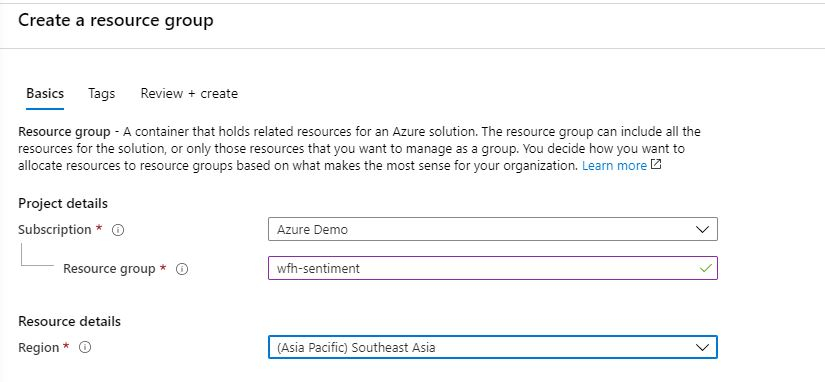
Step 1: Create the Resource Group

As the first step, we need to create the resource group that contains all the resources needed. Navigate to Azure Portal and create the resource group named "wfh-sentiment"

Step 2 : Create the Function App

As the next step lets create the Function App which we need to detect the sentiment of the tweet. You can create and deploy the function app using Visual Studio Code. Open Visual Studio Code(Make sure you have already installed the VSCode with the function core tools and extension). Select Ctrl + Shif + P to create a new Function Project and select the language as C# ( But you could consider using any of the language that you are familiar with)

Create new Function App

Select language as C#

Select the trigger as HttpTrigger

Give the name of the Function

Provide the name of the function

and the logic of the Function app is as follows,

using System;
using System.IO;
using System.Threading.Tasks;
using Microsoft.AspNetCore.Mvc;
using Microsoft.Azure.WebJobs;
using Microsoft.Azure.WebJobs.Extensions.Http;
using Microsoft.AspNetCore.Http;
using Microsoft.Extensions.Logging;
using System.Net.Http;
namespace WorkFromHome
{
public static class DecideSentinment
{
[FunctionName("DecideSentinment")]
public static async Task<HttpResponseMessage> Run(
[HttpTrigger(AuthorizationLevel.Anonymous, "get", "post", Route = null)] HttpRequestMessage req,
ILogger log)
{
log.LogInformation("C# HTTP trigger function processed a request.");
string Sentiment = "POSITIVE";
//Getting the score from the Cognitive Service and determining the sentiment
double score = await req.Content.ReadAsAsync<double>();
if(score < 0.3){
Sentiment = "NEGATIVE";
}
else if(score < 0.6){
Sentiment = "NEUTRAL";
}
return req.CreateResponse(System.Net.HttpStatusCode.OK,Sentiment);
}
}
}

And the source code can be found here. Then , you can deploy the function App to Azure with simple command using Ctrl+Shift+P and deploy to Function App.

Step 3: Create the Azure Cognitive Service to determine the sentiment of the tweet text

As we discussed above, lets create the cognitive service to determine the sentiment score of the tweet. Go to the same resource group and search for cognitive service and create a new service as follows,

Create Cognitive Service

Step 4: Create Cosmosdb to store the data

In my application, i have made this step optional as i don't need to save the tweet data for historical analysis. But you can definitely use cosmosdb to store the tweets to process later. As how you created the Cognitive service create a new cosmosdb account and a database to store the data as follows,

Cosmosdb to store tweets data

Step 5: Create PowerBI dataset to visualize the data

Navigate to PowerBI portal and create a new dataset to visualize the data we collected as follows,

Create new Streaming Data set in the work space

Select API in the new streaming data set option

Configure the fields as above.

Step 6: Create the Logic App and configure the Flow

This is the core part of the application as we are going to link together the above component as one flow. You can connect these flows using designer as well as using YAML code. I will be using Designer to create the flow.

As denoted above the first step we need to add the twitter connector which you can pick from the available list of connector named "when a new tweet is posted"

Connector when new tweet is posted

You need to configure the search text which you want to get the tweets , in this case i am going to use the Hashtag "#WFH" and set the interval as 30 seconds.

Look for new tweets on every 30 seconds

The second step is to pass the tweet to Azure cognitive service to analyse the sentiment of the tweet and get the score as output

Select detect sentiment as the next step

You need to provide the key and the URL which could be obtained from the cognitive service you created above.

Configure the detect sentiment of the tweet with the input as the tweet text

The third step is to pass the score obtained above to Azure function which we already deployed to determine the sentiment of the tweet, select the azure function from the connector list as follows,

Select Azure Function which will display the functions already deployed to azure

Configure score from the Cognitive service as an input to the Azure function

Next step is to stream the data set to powerBI so that it will be readily available for the visualization. Select the below connector as next step

Configure Add rows to a dataset to insert data to PowerBI

We are almost done with the configuration, as the last step you need to map the data fields from the above steps to insert into the dataset and the final configuration looks as below.

Mapping the dataset with the outputs from the previous steps

Step 7: Visualize it in PowerBI

Now we have configured all the steps required in the logic app, navigate to PowerBI and select the data set from which you want to create the report/dashboard. In this case we will select the data set which we have already created as follows,

Select the dataset

Rest is yours, you can create lot of usual charts/visualizations according to the way you need. I have created four basic metrics to see how world reacts to "work from home"

  • Indicate the total number of unique tweets
  • Distribution of sentiments using a pie chart
  • Table which displays all the data (user,location,sentiment,score and the tweet)
  • Worldmap which shows how distribution of sentiments look like

and this is how my application/dashboard look like.

Final Dashboard with RealTime Tweets

As you can see the tweets and the sentiments are being inserted to the data set and most of the sentiments are being Positive(Looks green !!!). You can replicate the same architecture for your scenarios ( Brands/ Public opinion etc).

As you see some complex scenarios/problems can be easily sorted out with the help of serverless computing and that is the power of Azure. Cheers!

For those who are interested you can view the Live dashboard.

· 3 min read

In general, any certification offers practical experience to individuals from all the aspects to be a proficient worker.Certified professionals have more beneficial and relevant networks that help them in setting career goals for themselves.Since last year I concentrated on the different Azure certifications. This year I have have a target to complete certifications on different areas too. As a start for this year, i did the certification PL-900 today and i would say it is one of the easiest exam if you have prior experience in building Mobile applications and have a general idea on how to solve business problems.

Microsoft's Power Platform

Microsoft's Power Platform is a low code platform (an environment with graphical user interfaces rather than traditional scripts and programming languages) powered by Microsoft Azure (the cloud computing platform) enabling organisations to analyse data from multiple sources, act on it through created applications and automate business processes.he Power Platform contains 3 key aspects (Power Apps, Power BI,Power Virtual Agents, and Power Automate) and integrates with 2 main ecosystems (Office 365 and Dynamics 365).

PL-900: Microsoft Power Platform Fundamentals

Last year November the new PL-900: Microsoft Power Platform Fundamentals was released in Beta mode and it's recently went into generally available.

After reading the "Skills Measured" section, I realized that a lot of what I have implemented in the past as a developer and i had some experience with PowerBI as well.

Based on the content , i was confident enough to take the exam but I wanted to make sure I was completely prepared for the exam on the topics which i am not familiar with, so did some learning on Dynamics 365 on Microsoft Learn and the Common Data Service (CDS) on Microsoft Learn as well.

Exam Materials and Tips:

You need to only spent 3-4 hours reviewing the Learning Path of Power Platform Fundamentals if you are already familiar with the topics. It's a pretty straight forward exam for which if you read the course on Microsoft Learn, you should be good to go. If you are aware of all the components of the Power Platform, you probably can give the exam as is.

Link to Exam: Here
Released: 4th November 2019 (GA 18/02/2020)
MS Learn: Modules available

I would request anyone preparing for PL-900 to have a good grasp of the following subjects:

  • Common Data Service
  • Difference between Power BI Desktop and Power BI Service
  • Power Apps Portals
  • AI Builder Models
  • Difference between Business Rules and Business Process Flows
  • How Power Platform works with Dynamics 365

It is not a hard exam if you are from the developer background, however get well prepared for this one! As always get hands on. Let’s be citizen developers together. Cheers!

· 3 min read

I've been gaming since 2003 till now.I remember those sleepless nights and how much fun i had playing PC games. I always wanted to be a game designer since my childhood days and have built lot of small games during my university days. After a very long time i invested some time and built a simple game using Python and Azure cosmosdb. I wanted to write how to build the game "Corona escape" with others in this blog post.

PreRequisities:

  • Python 3 Installed
  • VScode or Pycharm
  • Azure Subscription

Game Structure :

The coronavirus is fairly new that has taken the world by shock. It’s been two months since the outbreak started and it has shown that it isn’t as deadly as the SARS virus. This game "Corona Escape" is built using Pygame which is a library for beginners to cut their teeth on to get comfortable with learning programming and the process of game development and feel successful in making games. It's also a great rapid prototyping tool. This game is very similar to any jump game. The idea is that to escape from the virus as much as you can, user will be provided with a capsule to make the move fast and a mask to escape from the virus. I will not go in detail on the logic side of it as the source code is published here.

Corona Escape Game

Architecture below is fairly easy, its just a diagram with Cosmosdb to store the data and application insights to gather the user details (type of device,location etc). If you have plan to expand the game, you could add other components in the architecture such as azure functions etc.

Highest score is pushed to a text file and Azure cosmosdb for sharing the score across the users in the world. The related code resides in the cosmos.py which as follows,

def getLeaderBoard(self):
options = {}
options['enableCrossPartitionQuery'] = False
options['maxItemCount'] = 100
query = {'query': 'SELECT * FROM server s'}

results = self.client.QueryItems(self.container['_self'], query, options)

for result in results:
print(result['message'])


def pushData(self,username,highscore):
data = self.client.CreateItem(self.container['_self'], {
"username": str(username),
"highscore": str(highscore),
"message" : str(username) + " got " + str(highscore)
})


Make sure to create a cosmosdb account with the SQL API and pass those credentials under config.

self.config = {
'ENDPOINT': 'your endpoint',
'PRIMARYKEY': 'your cosmosdb primary key',
'DATABASE': 'your db',
'CONTAINER': 'your container'
}

How to run the Game:

  • Clone the repository from here
  • Make sure to install the dependencies using pip such as pygame
  • Run the game with the command python main.py

Hope this helps someone who want to build games using python and cosmosdb. Play the game and add your comments below. cheers!

· 3 min read

I've been gaming since 2003 till now.I remember those sleepless nights and how much fun i had playing PC games. I always wanted to be a game designer since my childhood days and have built lot of small games during my university days. After a very long time i invested some time and built a simple game using Python and Azure cosmosdb. I wanted to write how to build the game "Corona escape" with others in this blog post.

PreRequisities:

  • Python 3 Installed
  • VScode or Pycharm
  • Azure Subscription

Game Structure :

The coronavirus is fairly new that has taken the world by shock. It’s been two months since the outbreak started and it has shown that it isn’t as deadly as the SARS virus. This game "Corona Escape" is built using Pygame which is a library for beginners to cut their teeth on to get comfortable with learning programming and the process of game development and feel successful in making games. It's also a great rapid prototyping tool. This game is very similar to any jump game. The idea is that to escape from the virus as much as you can, user will be provided with a capsule to make the move fast and a mask to escape from the virus. I will not go in detail on the logic side of it as the source code is published here.

Corona Escape Game

Architecture below is fairly easy, its just a diagram with Cosmosdb to store the data and application insights to gather the user details (type of device,location etc). If you have plan to expand the game, you could add other components in the architecture such as azure functions etc.

Highest score is pushed to a text file and Azure cosmosdb for sharing the score across the users in the world. The related code resides in the cosmos.py which as follows,

def getLeaderBoard(self):
options = {}
options['enableCrossPartitionQuery'] = False
options['maxItemCount'] = 100
query = {'query': 'SELECT * FROM server s'}

results = self.client.QueryItems(self.container['_self'], query, options)

for result in results:
print(result['message'])


def pushData(self,username,highscore):
data = self.client.CreateItem(self.container['_self'], {
"username": str(username),
"highscore": str(highscore),
"message" : str(username) + " got " + str(highscore)
})


Make sure to create a cosmosdb account with the SQL API and pass those credentials under config.

self.config = {
'ENDPOINT': 'your endpoint',
'PRIMARYKEY': 'your cosmosdb primary key',
'DATABASE': 'your db',
'CONTAINER': 'your container'
}

How to run the Game:

  • Clone the repository from here
  • Make sure to install the dependencies using pip such as pygame
  • Run the game with the command python main.py

Hope this helps someone who want to build games using python and cosmosdb. Play the game and add your comments below. cheers!